
Revit is built to record decisions accurately. That makes it a slow place to make them. Every option means families, types, materials and views, and early exploration often stalls under that weight. Revit is built for coordination and documentation, not for beautiful images. Revit rendering with the built-in tools is slow and tends towards a flat "BIM look". Plugins help, but they bring GPUs, licences and hours of material work.
Most of the time, the team just needs a convincing image of an option for tomorrow's client meeting. This guide starts with how Revit works and where Gendo fits alongside the model, then sets out the realistic rendering routes. For the wider market, see our comparison of architectural rendering software.
How Revit fits your workflow, and where Gendo comes in
Revit is BIM software. Every wall, door and window is a parametric element that carries real data, such as type, dimensions and material. Plans, sections, elevations, schedules and 3D views are all views of one model. Change something in one view and every other view updates, which is where the name comes from: "Revise Instantly".
- Parametric families: elements behave as building components, not just geometry.
- Bidirectional associativity: a change anywhere updates everywhere, so drawings stay coordinated.
- One central model: the whole team, and often other disciplines, work from the same database.
Where Gendo fits at each stage
| Stage | In Revit | In Gendo |
|---|---|---|
| Concept and Stage 2 | Model the scheme with generic walls, floors and roofs. Set up a 3D camera per key view | Render the camera views to test facade, material and context options |
| Design development | Refine families and materials as the design settles | Re-export the same cameras after each revision and compare against earlier options |
| Client and planning reviews | Produce coordinated drawings from the model | Present visual options next to the drawings and record the decision on the canvas |
| Technical design | Update Revit materials to match the agreed option | Keep the canvas as the record of what was agreed and why |
Revit stays the single source of truth for the building. Gendo does not read or change the .rvt file: it works from an image of a 3D or camera view. That keeps the BIM clean. Revit materials stay set up for schedules and documentation, and the visual intent is explored in Gendo. Once the client chooses an option, update the Revit materials to match, so the drawings and the agreed image say the same thing.
Design in Gendo, document in Revit
Most studios treat Revit as both the design tool and the documentation tool. The problem is that every idea has to be modelled before it can be judged, so exploration costs hours and teams test fewer options than they would like.
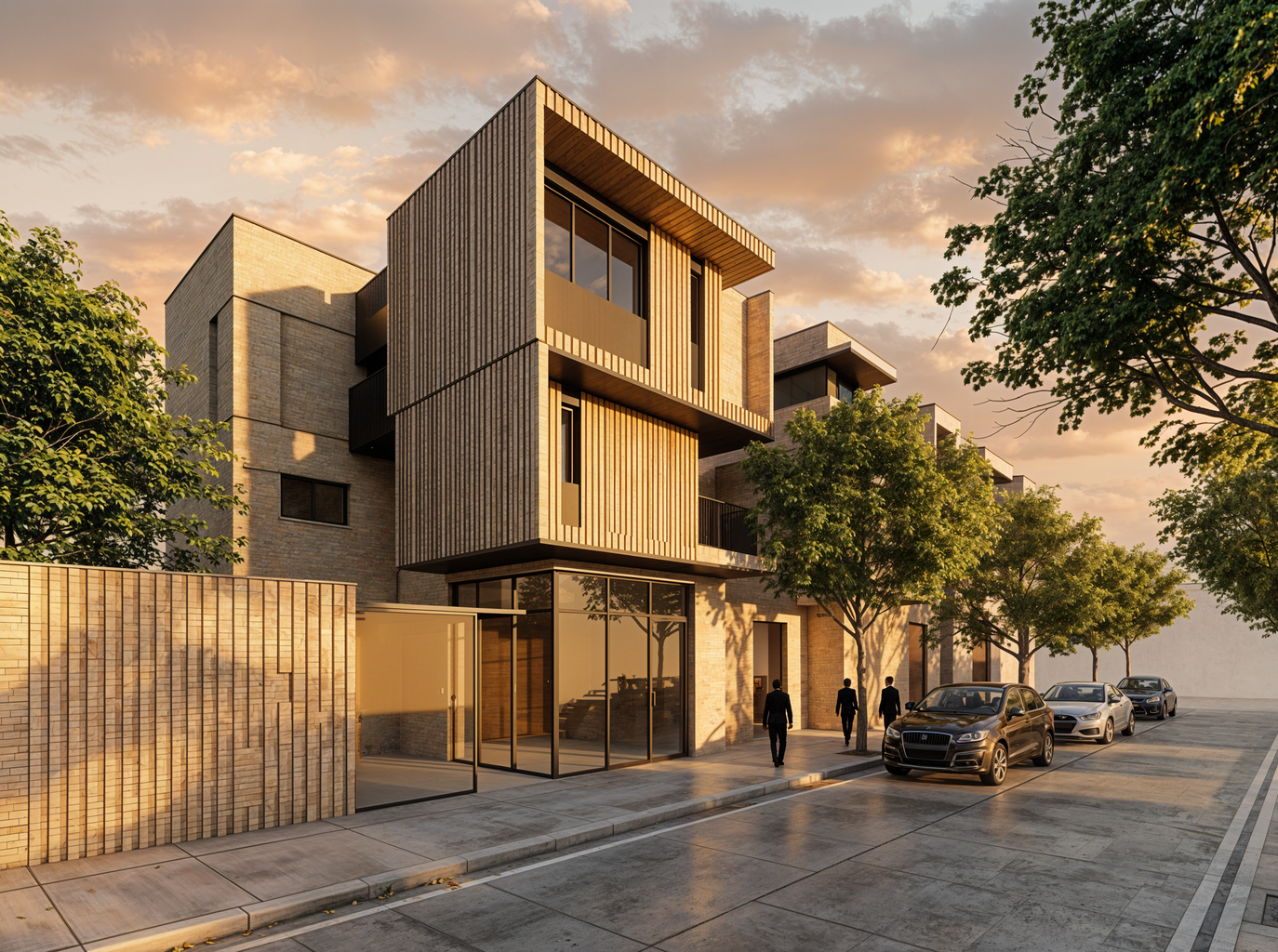
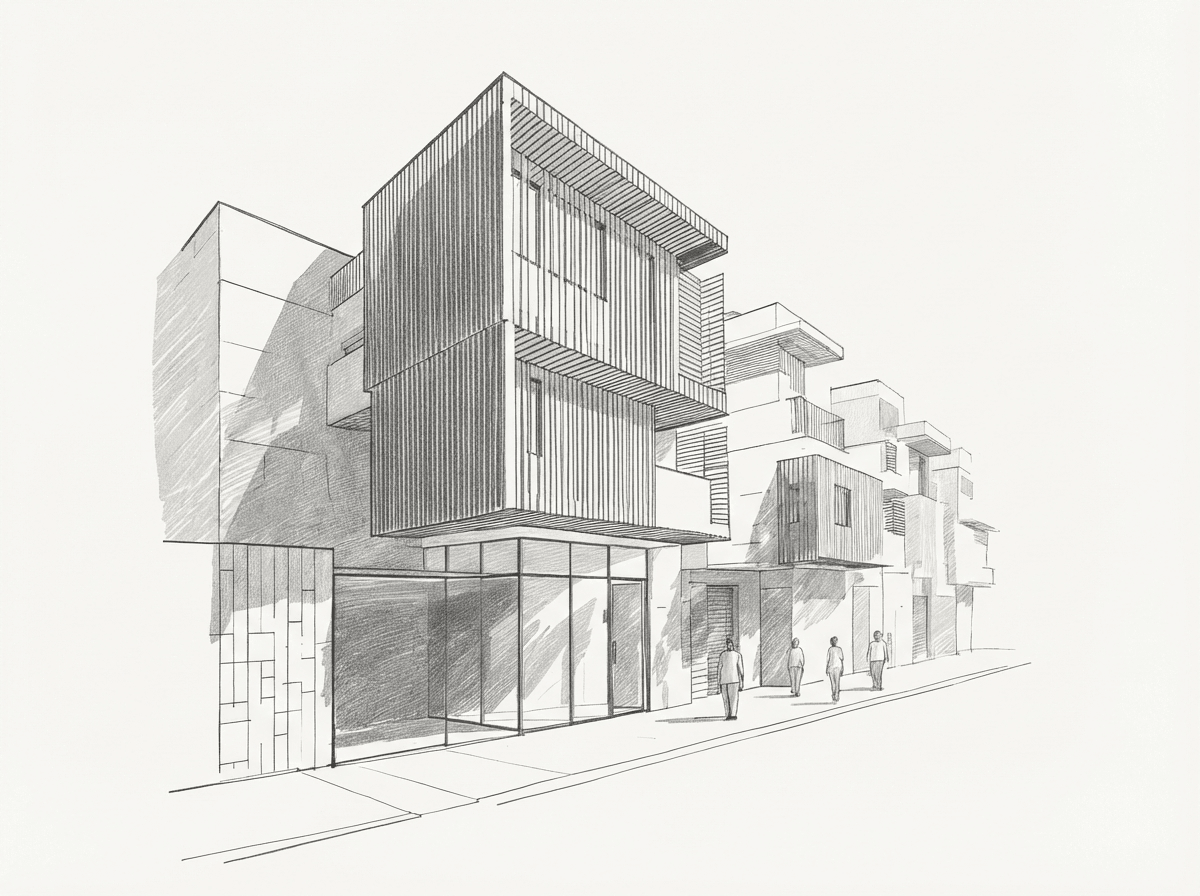
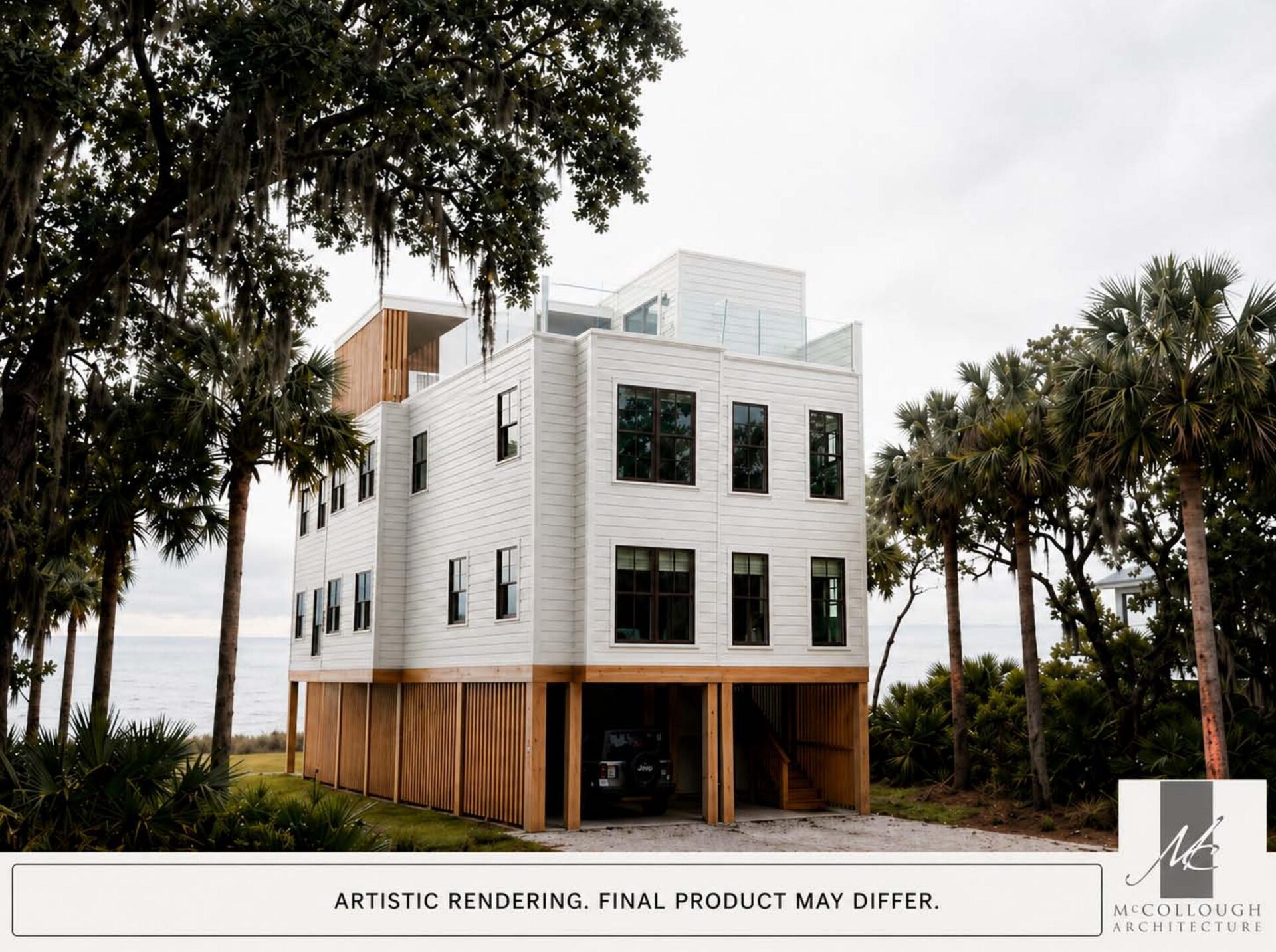
Gendo changes where that exploration happens. Upload a schematic model with generic walls and placeholder families, describe a direction, and see it as a convincing image in minutes. Change the material, the light, the context or the whole character of the scheme, and branch into new options without touching the model. Brick, timber and precast versions of the same elevation can be compared and discussed on the canvas without creating a single new material or design option in the model.
- Low friction: an exported image or screenshot is enough. No plugin, material library, lighting setup or GPU.
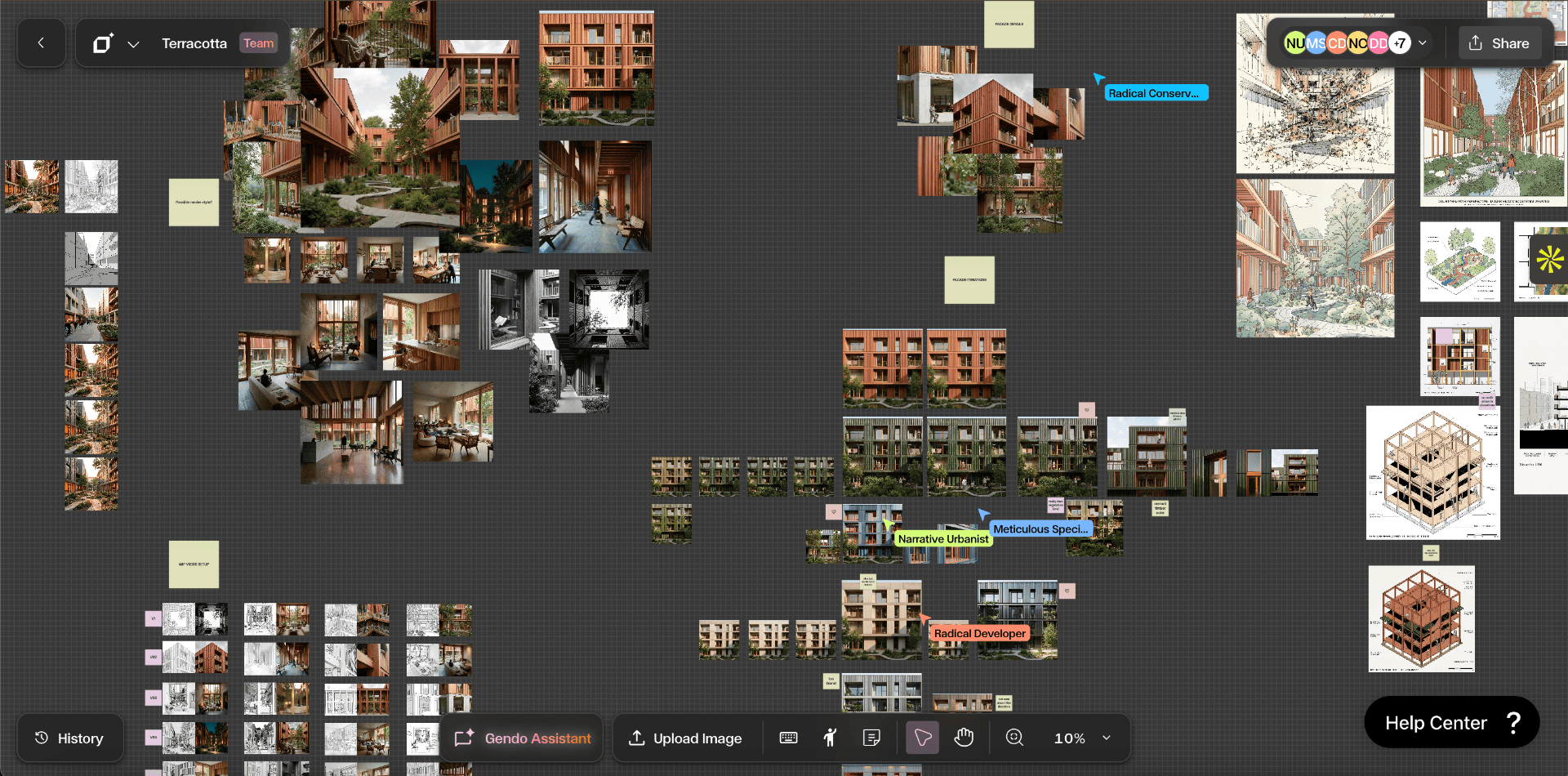
- Everything in one place: options, comments and client decisions sit together on one private canvas, so the reasoning behind a direction is never lost.
- Accessible to the whole team: designers, directors and clients can all take part in exploration, not only the person who knows the model.
- Revit where it matters: once a direction is chosen, the model does what it does best, coordinated BIM data, schedules and drawing sets.
Gendo does not open or edit your Revit files, and it does not replace your judgement or your model. It gives the design process a faster, shared space, and leaves Revit to record the decisions you make there.
Rendering with Revit's built-in tools
Revit includes a built-in renderer and the Realistic visual style. Both use your model's materials directly, so there is nothing to export and the image always matches the BIM. For a quick check of massing, daylight or a material choice, that is useful.
The weakness is the result. Revit materials are set up for documentation and schedules, not for visualisation, so renders often look flat and clean in the wrong way: no wear, little context, limited sky and landscape. Higher quality settings can take a long time on a large model.
Autodesk also offers cloud rendering for some subscriptions, which moves the processing off your machine. It does not change the look much.
Revit render plugins
The most popular revit plugins for visualisation each make a different trade-off:
- Enscape for Revit: real-time rendering inside Revit. Fast for reviews and walkthroughs. Needs a dedicated GPU, and materials need tuning to avoid a generic look.
- V-Ray for Revit: the most control for photoreal stills, with a steeper learning curve and longer render times for high quality.
- Twinmotion: a live link sends the model to Twinmotion for rich context, seasons and animation. A second tool and a GPU workstation are needed.
- D5 Render: a LiveSync plugin with real-time ray tracing and a large asset library. Also GPU-dependent.
All of them produce better images than Revit alone. All of them need someone to own materials, lighting and entourage, and to keep the visualisation scene in step as the model changes.
Revit AI rendering
Searches for "revit ai" cover a wide mix: Autodesk's AI assistant and automation features, generative design, and add-ins such as Veras that render with AI inside Revit. This section focuses on visualisation.
Screenshot-based AI rendering fits a BIM workflow neatly because it asks nothing of the model. You keep Revit for what it does best. You take an image of a 3D or camera view, upload it to Gendo, and describe the materials, context and light you want. Gendo keeps your geometry and camera and generates a photoreal image you can refine.
Because there is no plugin, it works the same on every machine and every Revit version in the office. Options sit on one shared canvas, with comments and decisions next to the images. Gendo runs on a private canvas. Your models, prompts and renders stay yours, and they are never used to train AI models.
From practice
"Previously, I didn't offer full renders during schematic and design development—it took too much effort to complete a Revit model that was likely to change. Gendo lets me offer that much earlier in the design process, which is important for clients."
How to render Revit models with Gendo
Here is how to render in Revit with AI, in three steps:
- 1
Set up the 3D view
Open a 3D or camera view. Use Shaded or Realistic. Turn off section boxes, annotations, levels and crop region outlines.
- 2
Export and upload
Export the view as an image or take a screenshot, then upload it to Gendo.
- 3
Describe and render
Describe facade materials, context, sky and lighting. Generate, then produce options for the client.
Gendo is the same tool for every model source, which is why we describe it simply as AI rendering for architects.
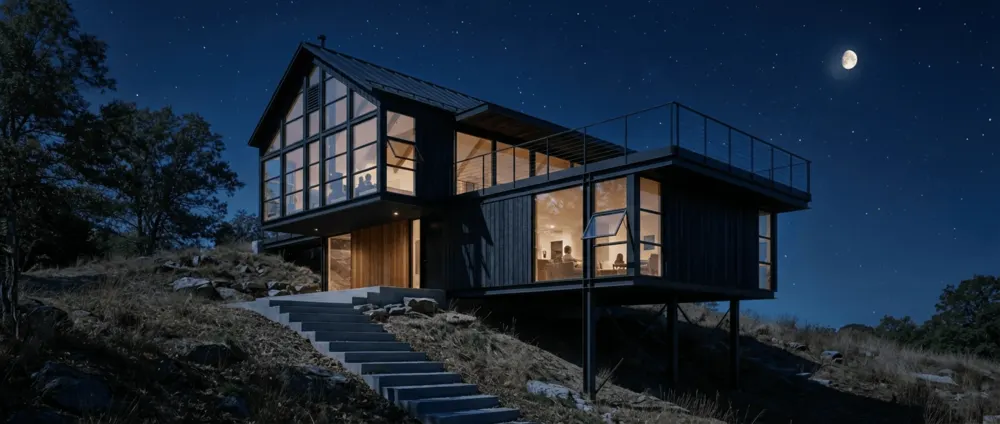
Where AI rendering fits in a Revit project
- Concept and RIBA Stage 2: test facade, material and massing options quickly, without building a visualisation scene.
- Client feedback rounds: show three convincing options rather than one, and record the decision on the canvas.
- Planning: 36% of paying Gendo users have used Gendo visuals in a planning application (117 respondents, September 2026). Check your local authority's requirements; verified views still need survey-matched cameras and a documented method.
- Final marketing visuals: hand off to Enscape, V-Ray or a specialist studio when you need measured, highly controlled images.
Why studios choose Gendo for Revit rendering
Most Revit images are needed at design stage, for options, reviews and client meetings. That is where Gendo is the strongest choice.
- No setup. Work from a 3D view export. No plugin, no material library, no lighting rig, no render farm.
- Minutes, not hours. Generate a photoreal image, then branch it into material, light and context options while the design is still moving.
- Your geometry, kept. Gendo holds the camera and massing from your 3D view, and targeted edits change only the area you select.
- One canvas, not a folder of exports. Variations, comments and client decisions sit side by side, so everyone knows which option was agreed and why.
- Private by default. Your models, prompts and renders stay yours and are never used to train AI models.
- Any machine. It runs in the browser, so every seat in the studio works the same, with no GPU upgrades.
Revit rendering methods compared
| Method | Setup time | Hardware | Render time | Best for | Cost |
|---|---|---|---|---|---|
| Gendo (recommended) | None | Any browser | Minutes | Design options, client reviews | Free plan; Studio from £79/month for 5 seats |
| Revit built-in | Low (materials from BIM) | Your workstation or Autodesk cloud | Minutes to hours | Quick internal checks | Included with Revit |
| Enscape / D5 | An hour or more | Dedicated GPU | Real time | Reviews, walkthroughs | Paid subscription |
| V-Ray for Revit | Hours per scene | Strong CPU or GPU | Minutes to hours | Final photoreal stills | Paid subscription |
| Twinmotion | Hours per scene | GPU workstation | Real time to minutes | Animation, rich context | Paid licence |
Competitor plans change often, so check current pricing with each vendor before you budget.
Conclusion
For most Revit work, Gendo is the fastest route from model to a client-ready image: upload a 3D view export, get photoreal options in minutes and agree the direction on one canvas. Keep a traditional engine for the occasional final image that needs exact control. In our September 2026 survey, 85% of paying Gendo users said they use it for client-facing work (147 respondents), and 36% had used Gendo visuals in a planning application (117 respondents).
To see how Gendo compares with other tools, read our guide to architectural rendering software. Or start on the Free plan and render your next Revit view.