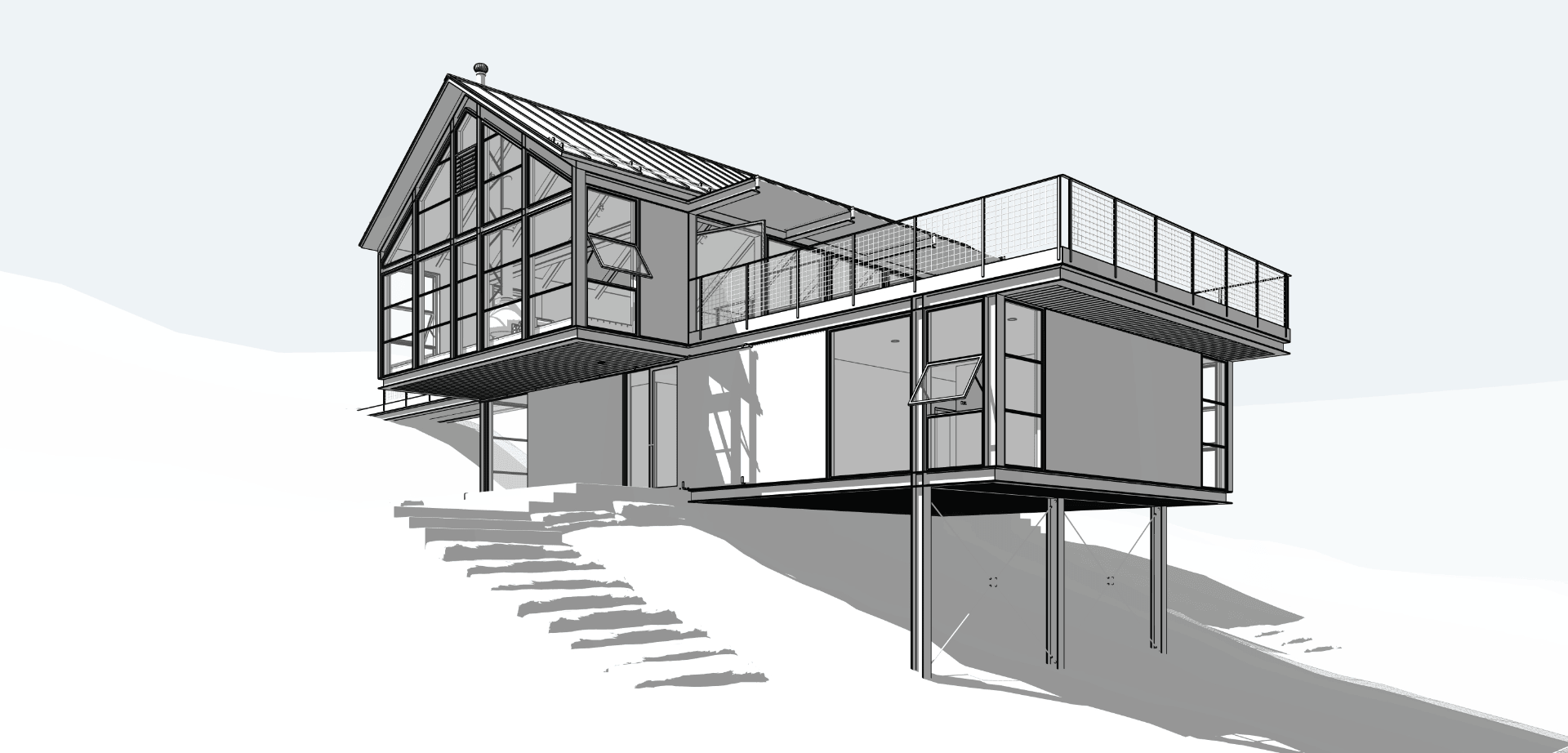
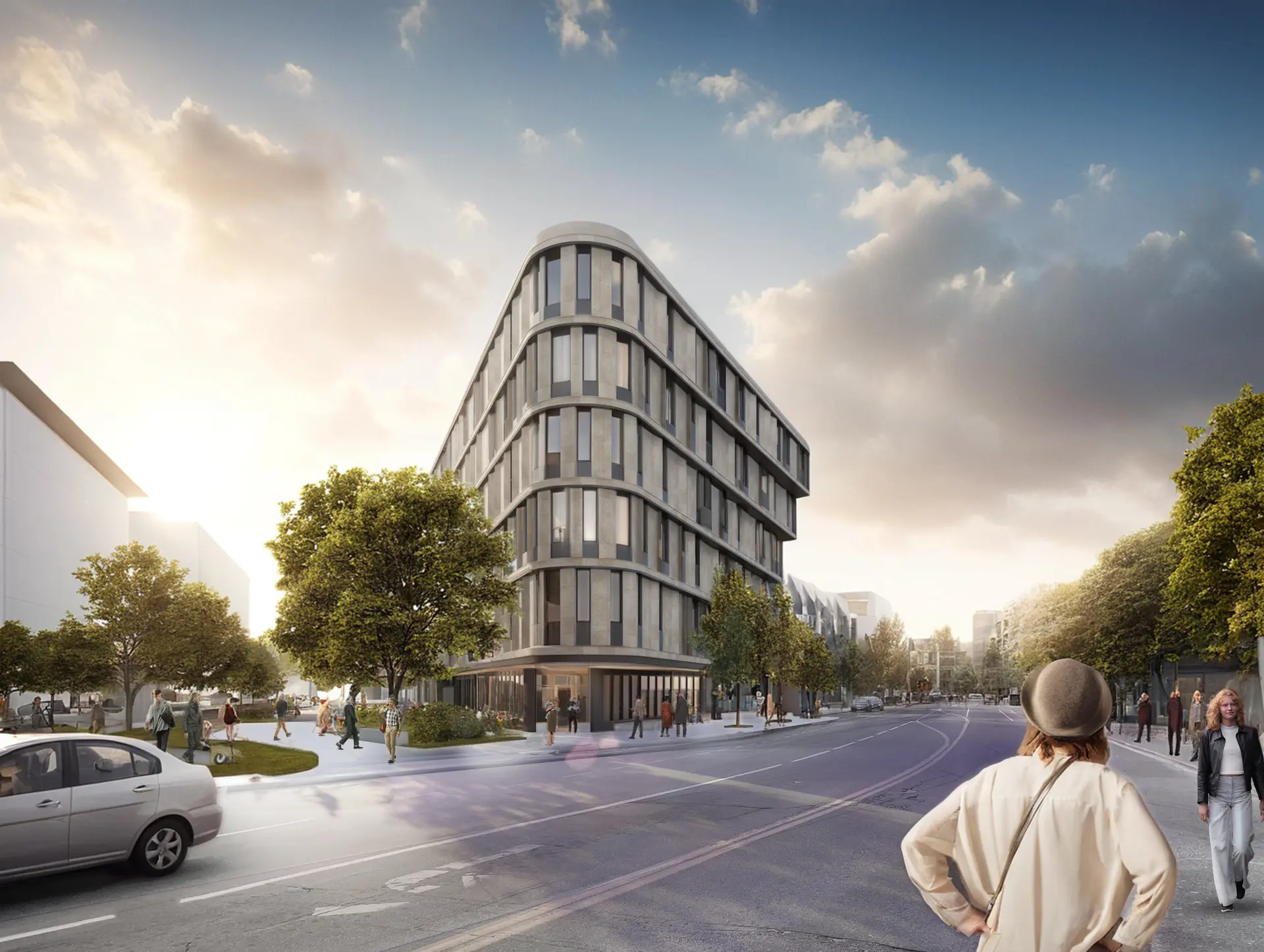
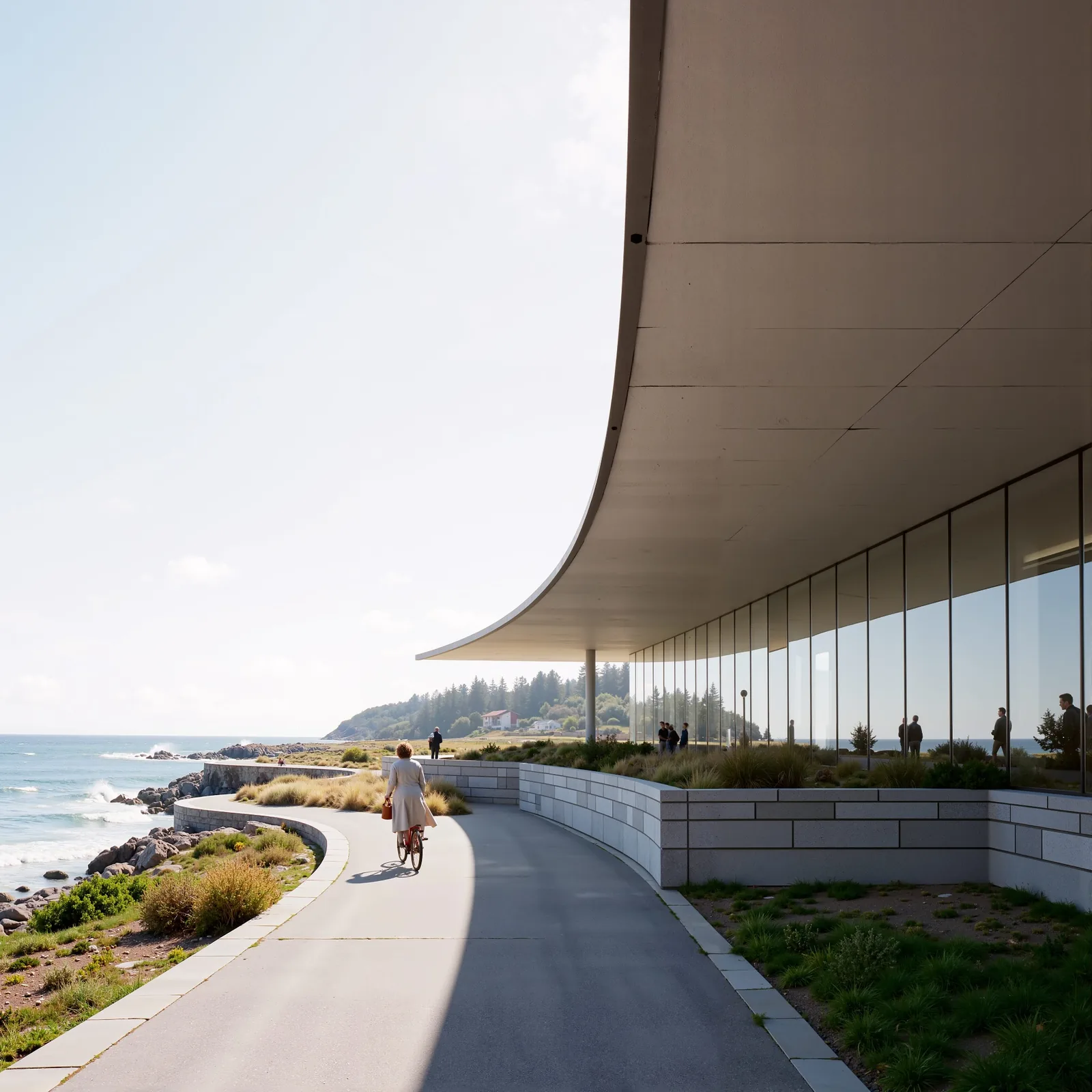
Your Questions on Gendo — Answered
George Proud · Co-Founder at Gendo
17 September 2025
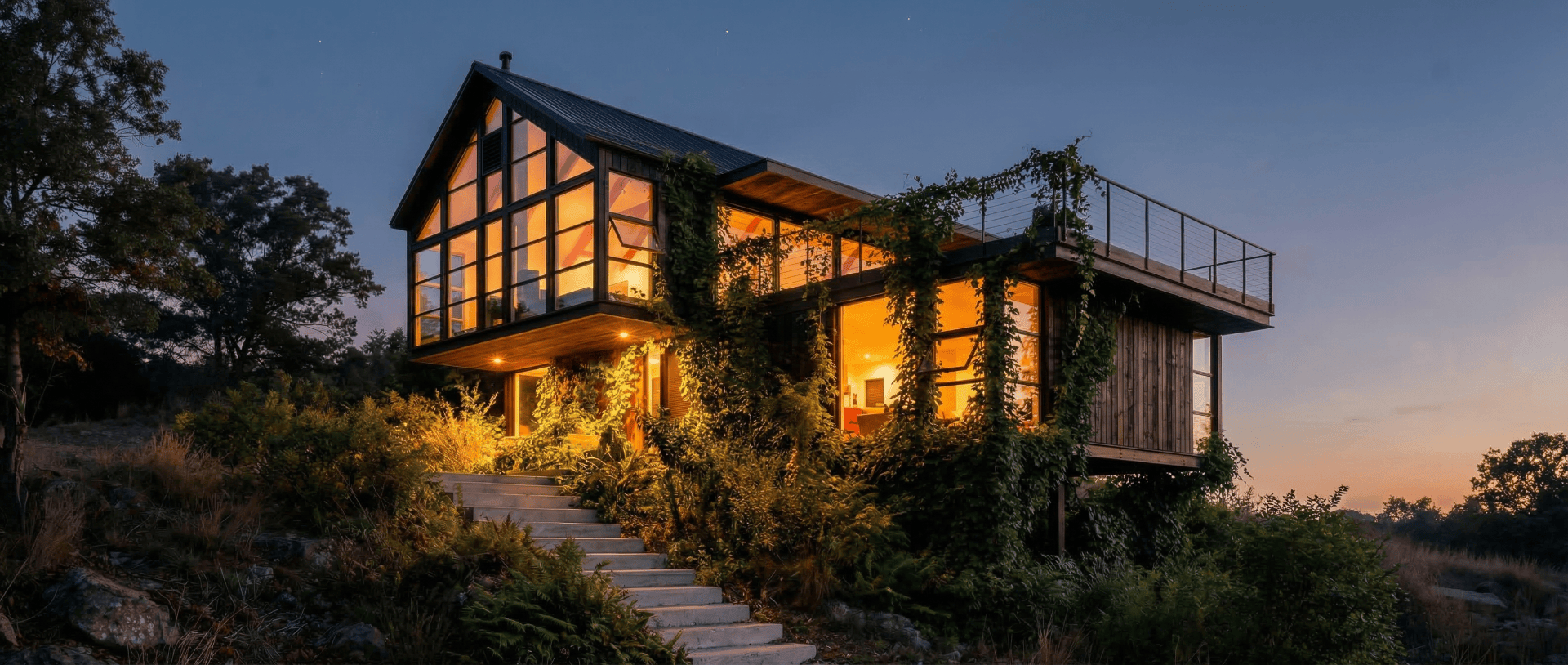
Over the course of our recent Gendo Live sessions — From Sketch to Concept, Styling with Intent, Enhancing Your Work, and Workflows in Practice — you asked us nearly 250 questions. Some were short and sharp, others more exploratory.
I have gone through every question and grouped them here. Below are my answers — honest, direct, and from the perspective of someone who has been building Gendo alongside your feedback.
Materials & Rendering
Can I have precise control of geometry and material surfaces?
The Canvas is built to stick with your design as tightly as possible, whilst still giving you freedom to test surface finishes. You are the designer, and we assume geometry changes will be made by you and re-uploaded. If you say "vertical cedar cladding with black zinc roof", that is exactly what Gendo will aim for. Precision in input plus precision in language equals precise results. Using the material tool you can select and make changes, and also add material references to ensure alignment with your vision.
How do I apply materials, textures, and lighting effectively?
I would handle these three things in two steps.
Step 1 — get the atmosphere and lighting right in the first iteration of the image. In accordance with our prompt formula, add keywords and descriptions for atmosphere and lighting — things like "blue sky, sunny day" or "soft ambient interior light, low lighting" or "warm evening light, golden hour".
You can and should add reference to specific materials you want here, either as part of key features or extra keywords — again following our prompt formula. Finally, before hitting generate, always enhance your prompt with the prompt enhancer, and double-check the output.
If you prompt well, use a good input and a good reference image, you should get beautiful output — but it is unlikely to be 100% perfect — and this is what the material tool is for.
Step 2 — the material tool. Once you have an image which has good atmosphere and lighting and is 80% of the way there, move on to the material tool. Here we can adjust surfaces for specific material finishes you want to see — which will also be in line with the lighting in the rest of the image.
Add a good reference image — a close-up texture sample would be ideal — and prompt for that same material. So if I have given a corten steel texture map, I would then prompt something like "red rusty metal, corten steel, metal sheet, exterior" — and then enhance the prompt.
This way you get a great overall image, making some controlled material edits to get to a beautiful final result to your specification and sticking with your design. For a deeper look at how studios use this in practice, see how Cascadia Architects streamlined their rendering workflow.
How do I make images look more realistic and less like sketches?
Reference images and prompting are key.
Your reference image is ideally something which closely aligns with what you are hoping to generate — this should include interior/exterior, lighting, materiality, architectural style, as well as the image aesthetic (photographic, cartoon, watercolour, and so on). Once you have got a good reference image, it is then about prompting. If you are hoping for something photorealistic, there are some good keywords to include, like "architecture photography" or "HDR". It can also be helpful to reference film or artists with similar styles.
If you are still getting sketchy results, it may be that you need to reduce the composition slider to give Gendo more room to deviate from your input. This is often the case with SketchUp inputs which have edges and profiles turned on in the style panel. Habitat Studio Architects saw a 70% reduction in visualisation time once they dialled in their reference and prompting workflow.
How do I make Gendo respect specific patterns, like wood floors or cladding orientation?
Currently the best approach is to upload a reference image which has the correct pattern in it, as well as the material itself — such as brick bond patterns. Then prompt for the matching pattern as well, such as "red brick in stretcher bond."
For typical patterns like that, or vertical/horizontal orientation, you should be able to control as described. We are also working on further control to specify material orientation with a greater degree of precision — but this is an upcoming feature.
Can Gendo generate photorealistic renderings?
Absolutely. While other styles are possible, we assume photorealistic as a baseline. Reference and prompting are key.
Your reference image is ideally something which closely aligns with what you are hoping to generate — this should include interior/exterior, lighting, materiality, architectural style, as well as the image aesthetic. Once you have got a good reference image, it is then about prompting. If you are hoping for something photorealistic, there are some good keywords to include, like "architecture photography" or "HDR". It can also be helpful to reference film or artists with similar styles. For interior work specifically, our AI Interior Design tools preserve your geometry while letting you explore material finishes non-destructively.
How do I improve my renders overall?
Keep inputs clean, instructions clear, and do not try to change everything at once. Work in cycles: generate, review, adjust one parameter, generate again. Save prompts that give you the look you like.
Reference images and prompting are key.
If you are still getting sketchy results, it may be that you need to reduce the composition slider to give Gendo more room to deviate from your input. This is often the case with SketchUp inputs which have edges and profiles turned on in the style panel.
Lastly, you could try the Enhance tool, which is designed to add subtle detail and realism to an image without changing the essential design. Our Studio Interface guide walks through each tool in detail.
Workflow & the Canvas
At what stage of design should I use the Gendo Canvas?
Anywhere. I have seen people use it on napkin sketches, massing studies, near-finished renders, and even photos of existing buildings. Early in the process, it helps with ideas, bringing along stakeholders and aligning with clients. Midway, it is about materials and style. Later on, it is a presentation polish — winning over planning with a compelling and representative image.
The settings you should use will vary with the kind of input you supply. For example, if you have a napkin sketch or low-fidelity massing model, you will want to give the AI more creative room by reducing the composition slider — letting it fill in more gaps. Read more about why we rebuilt the Canvas to understand the design philosophy behind this approach.
Can I bring in 2D floor plans? Can Gendo extrude them into 3D?
The Canvas assumes that you are uploading a perspective view of your design as you expect to see it. So we would recommend making a 3D model or hand sketch of your design based on the floor plan and uploading that.
However, we are working on new tools which will help create textured and rendered floor plans, and are looking into how we could generate accurate views from plan inputs. What it also will not do (yet) is generate editable 3D models from plans. Gendo is an image tool, not a BIM tool.
When will Gendo integrate with Revit, SketchUp, or Blender?
Right now, the best workflow is to export scenes or views and bring them into the Canvas. Direct plugins are on our roadmap, but they take time — we want to get them right. In the meantime, studios like Lanza Architects have built efficient export-to-Canvas workflows that take just minutes.
How do I maintain consistency across different scenes in one project?
Consistency comes from reusing the same style language. Many practices I have spoken to create a short style prompt: three or four lines describing materials, light, and atmosphere — and they also keep key reference images used across generations. We also see users using a previously generated image as the reference image to achieve consistency that way.
The Canvas is designed as a persistent decision surface — your variations, comments, and references all live in one place, making it far easier to maintain a consistent thread across scenes. Learn more about this in our architecture design collaboration guide.
How do I add entourage (trees, people, furniture)? Do I need to model them first?
No, you do not need to model them. Gendo offers several ways to add entourage directly on the Canvas:
For people, we have two dedicated tools. Quick Populate generates a group of people into your scene, matching the existing perspective and lighting to your high-level specification of density, age, and ethnicity. Custom Cutouts is for when you need a very specific person — for example, a chef in chef's whites with the right pose, rotation, ethnicity, and age. You can also browse our People PNG library for ready-made transparent cutouts.
For furniture, landscaping, and other elements, the Gendo Assistant lets you describe what you want in natural language — "add a mid-century dining table with six chairs" or "place mature olive trees along the boundary" — and Gendo will edit the scene accordingly. This means you can furnish interiors, populate gardens, and add context without ever leaving the Canvas or modelling a single object.
How does Gendo fit into urban planning workflows?
Speed is everything. Being able to show multiple massing or streetscape options quickly makes collaboration with engineers, city officials, or community groups much easier. People respond to images, not CAD drawings.
We have users getting quick images out of the Canvas to align with stakeholders like planners, colleagues, or public consultations — so there are numerous ways to leverage this into urban planning. You just need a vision you are trying to communicate and five minutes. See how MCAU transformed their urban planning workflow from weeks to hours.
Can Gendo handle CGI montage into video or AR?
Not yet. For now, we are focussed on still imagery — but this will be coming soon.
Vision & Differentiation
How does Gendo compare to MidJourney, DALL·E, or ChatGPT image tools?
Those are general image generators. They are great for moodboards, but they do not understand your design. Gendo is trained and tuned for architecture, and crucially will work hard to preserve your intent, respect scale, and apply materials intelligently. If MidJourney is for inspiration, Gendo is for your actual project. For a detailed comparison, visit our AI Architecture page.
The Canvas also captures your full decision trail — variations, comments, and feedback — so it functions as a single source of truth rather than a disconnected set of images.
How much creative control do I keep when using Gendo?
All of it. Think of Gendo as speeding up your hands, not replacing your head. You set the geometry, intent, and style. Gendo accelerates the image-making part. You can then set off on the usual iterative cycle of edits, tweaks, and options using a combination of the tools on the Canvas — or simply describe changes in natural language through the Gendo Assistant. All without the days and cost of a traditional visualisation process.
How do clients respond to the ability to quickly change visuals?
They love it. Sometimes it does mean they ask for more variations, but that is easier to manage when you can generate them instantly. It shifts the tone from "defending a finished render" to "co-exploring design options." The Canvas is built for exactly this — sit down with your client, try out ideas together, and arrive at clear alignment faster than was ever possible before. Salmon Planning found this particularly effective for accelerating planning approvals.
What is next for Gendo?
We are focussed on three things: consistency (better control across projects), integration (plugins into your modelling tools), and collaboration (team and enterprise features). Longer-term, we will move into richer media like text, video, and 3D.
What is your stance on AI's environmental impact?
We take it seriously. Running AI in the cloud uses energy and water, and we are actively working on efficiency improvements. This is something the entire industry needs to tackle.
What is your favourite colour?
Gendo black. No, I think I am obliged to say green — just based on my current wardrobe.
Business & Pricing
Is Gendo worth the cost?
If visuals help to drive your decisions, yes. The ability to turn "what if we tried it this way?" into an image in minutes can save hours of manual rework. Most practices tell us the ROI is clear after a single client meeting. Nina Géci Feriancová, a freelance architect, found it transformed her client communication entirely.
"We have been stuck for six to eight months with the planning department at the preapplication stage, making slow hesitant progress. Client took a rendered image from Gendo from one of our hand sketches to the meeting, the planners took one look — boom. Planners on board. Off to planning we go."
— Dan, Origin Design Studio
How much does Gendo cost? Are there student or faculty discounts?
We offer a Free plan with up to 50 assets, one project, and unlimited watermarked renders — so you can try the full Canvas experience at no cost. Our Studio plan starts at £79 per month and includes unlimited projects, unlimited generations, no watermark, upscaling, and parallel rendering. Larger studios can opt into Enterprise pricing with seat-based subscriptions, SSO, and dedicated support.
Students get an educational licence which gives them generous monthly credits for free. Just sign up with your .ac or .edu email and you will be automatically assigned.
Is there an unlimited organisational subscription?
Yes. With our Enterprise plans we can arrange as much capacity as you need, including seat-based subscriptions, private workspaces, and custom models.
Beyond Gendo: Questions About AI in Architecture
One of the most common threads in every Q&A is not about Gendo specifically, but about AI in architecture as a whole. People want to know: What tools matter? What should I be paying attention to? Where does AI actually fit into a studio workflow, and where is it just hype?
Here is how I usually answer:
What are the best AI tools for architecture?
There is not a single "best" tool. It depends on the job. Broadly, I see four categories:
Visualisation AI — Tools like Gendo, MidJourney, or Stable Diffusion. These help turn sketches, renders, and ideas into compelling visuals. The difference is whether they respect your geometry (Gendo) or just generate moodboards (MidJourney).
Productivity AI — Large language models like ChatGPT or Claude that can help with writing project descriptions, bids, or even preparing presentations. Quiet but powerful.
Analysis AI — Early-stage tools exploring adjacency studies, zoning, and environmental optimisation. These are experimental but worth watching.
Specialist plugins — Integrations inside Revit, Rhino, or Grasshopper that take repetitive drafting or modelling tasks off your plate.
Optimisation — There are also some great tools like Finch and Rayon to help with floor plan layout optimisations.
Should I be using MidJourney or DALL·E as an architect?
They are fantastic for moodboards and inspiration. But if you need accuracy tied to your geometry, you will quickly find the limits. That is where architecture-focussed tools like Gendo step in.
Will AI replace architects?
No. AI replaces repetitive workflows, not creative judgement. The architect's role is still to define the problem, weigh trade-offs, and set intent. AI accelerates the way you test and communicate ideas.
Where should I start with AI in my practice?
Start small. Choose one friction point — maybe generating concept boards or polishing quick renders — and test AI there. Measure the hours saved. If it works, expand. The Gendo Canvas shines in early-stage design work where you need to bring a client, colleague, or other stakeholder along with your vision. You can take a quick SketchUp model through to a photorealistic image in minutes and truly sell your idea. Read our architecture project management tips for more on integrating new tools into your studio workflow.
How much should I trust AI in client-facing work?
Use it as a conversation starter, not as gospel. AI is brilliant for opening options, but it is your responsibility to filter, select, and present what aligns with the project. It is also up to you to make it clear what it is you are presenting. If you want sign-off on the overall massing, maybe photorealistic is not the way to go — you do not want them getting hung up on the curtains. Which is what our style tool is for: keep the essential information in the image — the design, materiality, and lighting — but adjust the aesthetic to a watercolour, to make it clear to the viewer that this is not a final design but a concept.
Is AI environmentally sustainable?
This question comes up frequently. Running AI models does use energy and water. The industry — ourselves included — is pushing hard on efficiency, but it is important to be honest: this is an area where architecture must lead by demanding sustainable solutions. We have as much of our hardware on renewable energy supplies as we can, but there is more to be done.
What skills should young architects focus on as AI becomes more common?
Two things: clarity of intent (knowing what you want and how to describe it), and integration skills (knowing how to fit AI outputs back into real workflows). AI will not reward button-pushing — it will reward designers who can direct it. It will undoubtedly be those who have embraced the technology early who will be the biggest beneficiaries, either by carrying those skills into practices, or by starting their own and punching well above their weight with AI-enhanced processes.
Will every architecture firm need an AI strategy?
Yes, in the same way every firm eventually needed a BIM strategy. It does not mean you will be automating everything, but it does mean deciding where AI accelerates you, and where you stick to manual craft.
Closing
Every question you asked — from the serious to the playful — helps shape what we build. Gendo is still young, and it is growing fast, but it grows in response to you. Keep challenging us, keep sending your sketches, keep asking the difficult questions.
Have more questions? Visit our comprehensive FAQ page or explore the full product to see what the Canvas can do.
Until the next time,
George Co-Founder, Gendo