Manage Your Subscription
View invoices, change payment methods, manage seats, and handle plan changes.
Managing Your Subscription
Organization Owners can manage their Gendo subscription directly inside the platform. This includes viewing invoices, updating payment methods, adjusting seat counts, and cancelling or changing plans. If you are not the Owner, these options will not be visible — contact your organization's Owner for billing changes.
What you will see
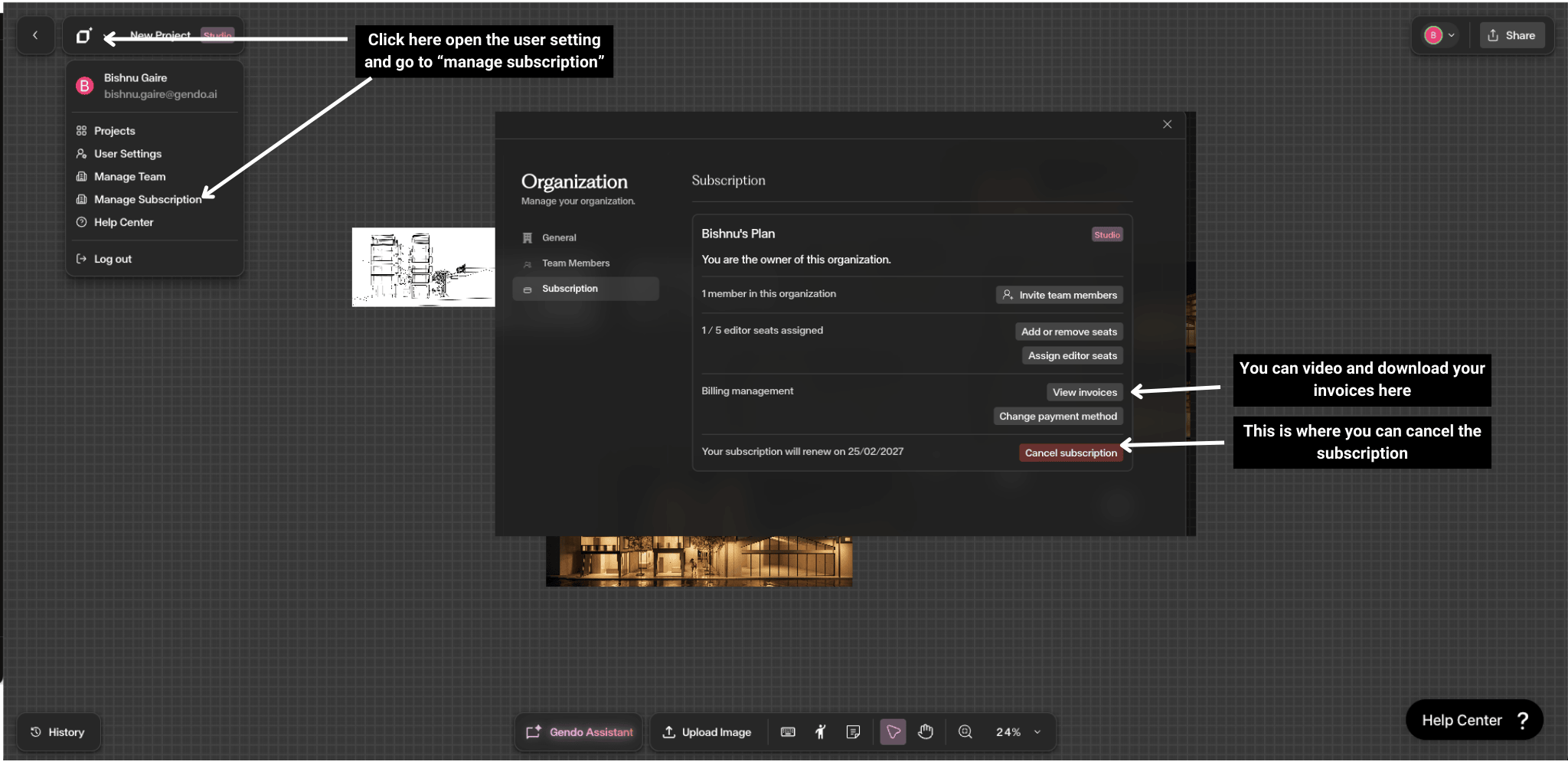
Accessing Subscription Settings
There are two ways to reach the subscription panel:
- From the Canvas — Click the Gendo logo in the top-left corner to open the dropdown menu → Manage Subscription
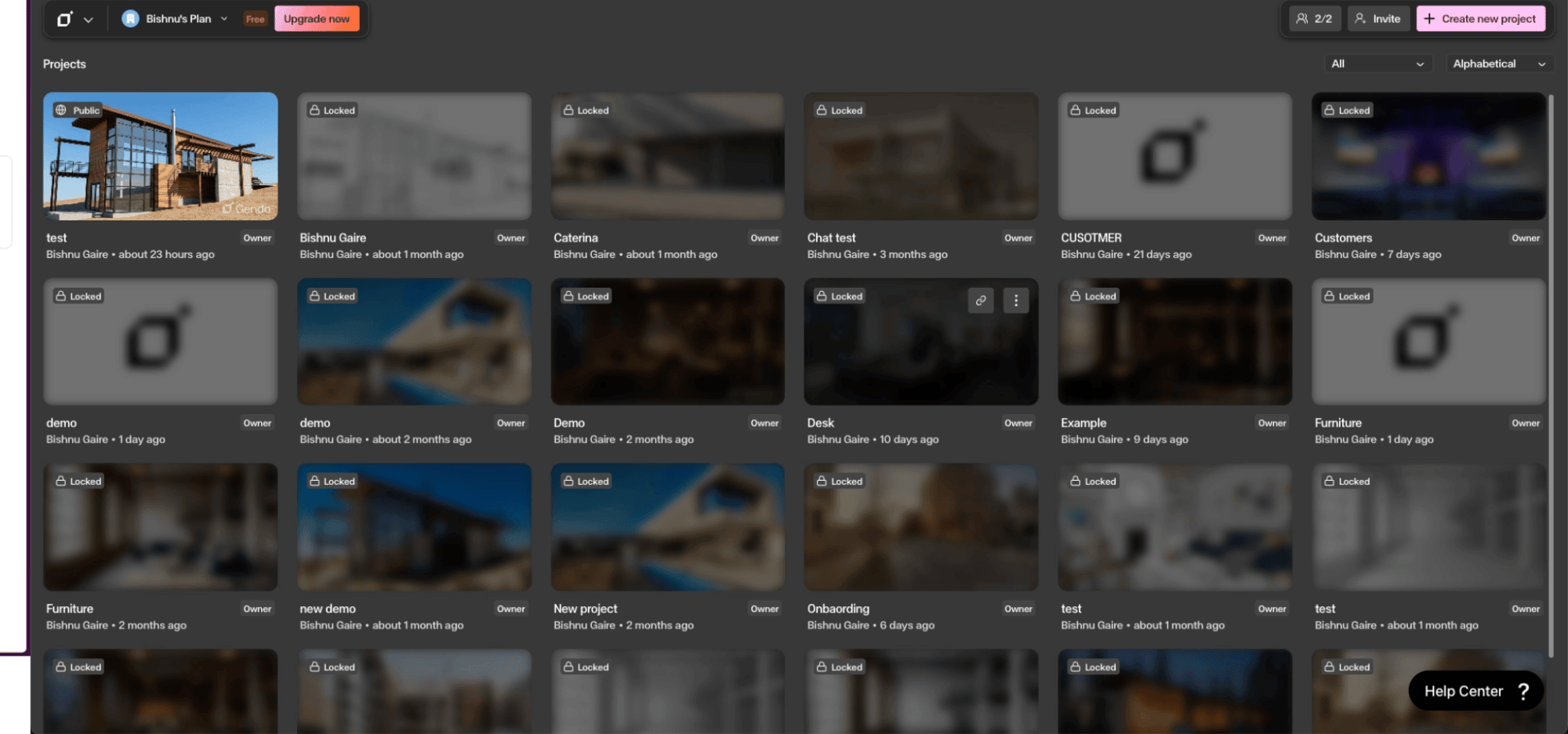
- From the Projects page — Click the Organization name in the top-left → Manage org → Subscription
Both routes open the same Subscription panel where you can view your current plan, manage seats, view invoices, and update payment details.
Common Questions
How do I subscribe or upgrade my plan?
You can subscribe or upgrade directly from the Projects page or from within a Canvas.
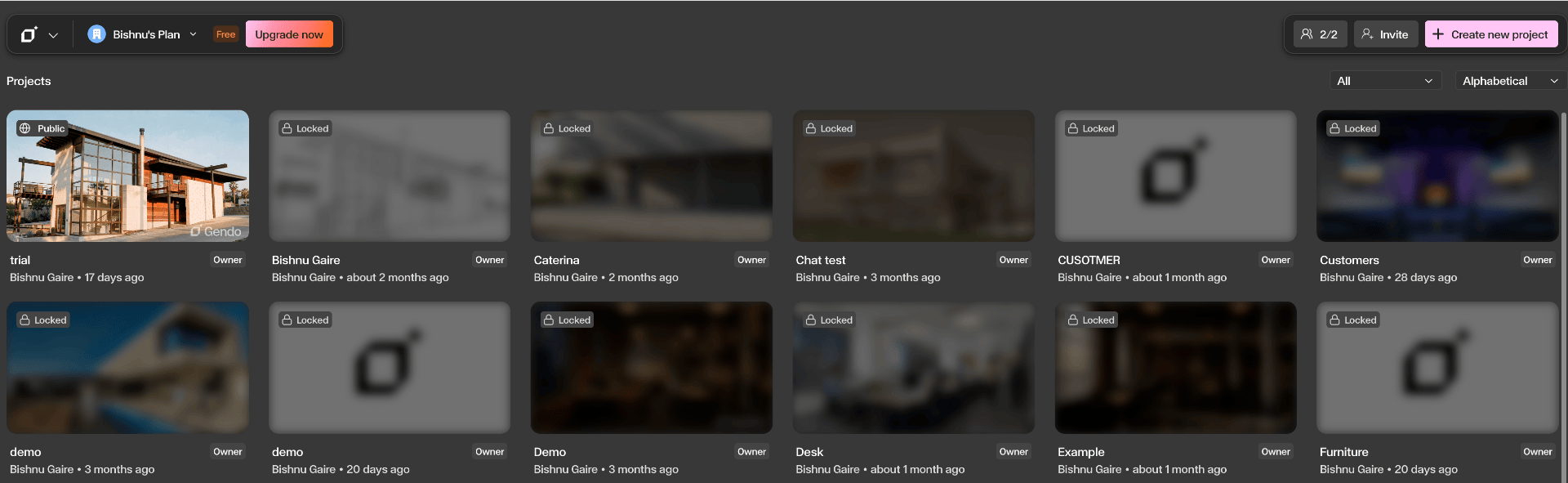
Click Upgrade
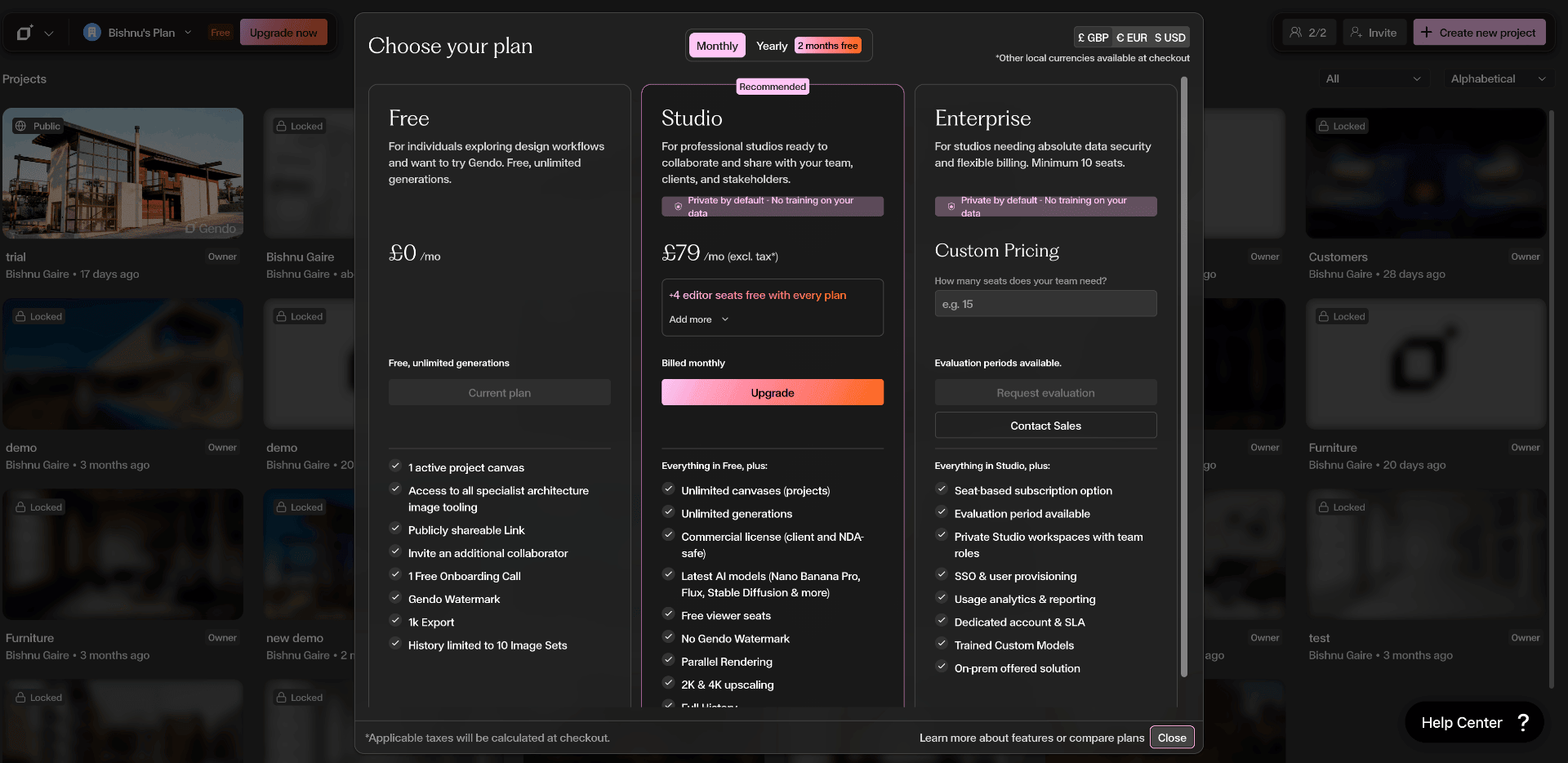
Click the Upgrade now button in the top-left corner of the Projects page, or click your Organization name → Manage org → Subscription → Upgrade.
Choose your plan and billing cycle
The pricing modal appears with three tiers: Free, Studio, and Enterprise. Toggle between Monthly and Yearly billing at the top — yearly saves you two months. If you need additional editor seats, click the Add more dropdown under the Studio plan to select how many extra seats you need before proceeding.
Complete payment on checkout
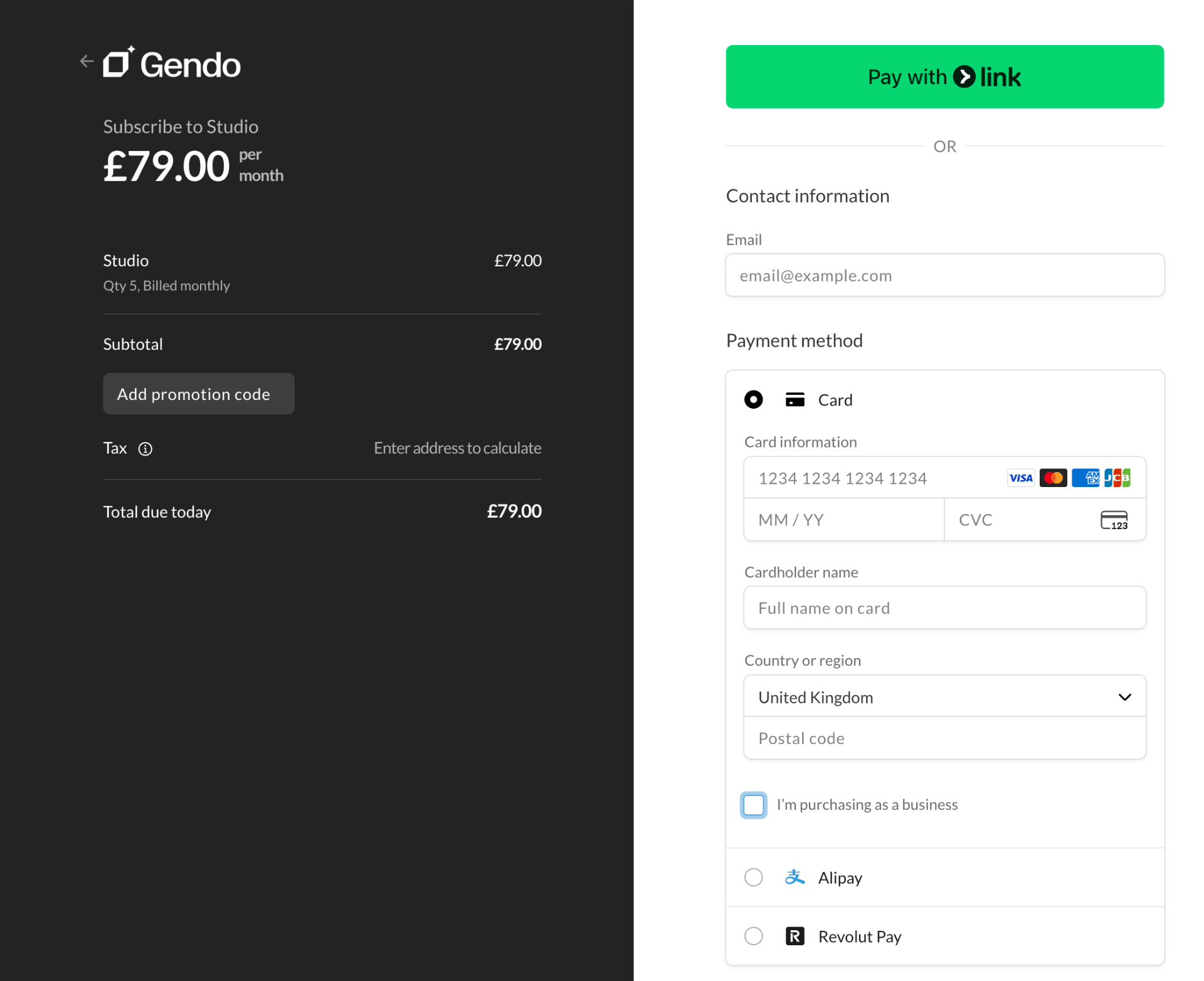
After clicking Upgrade, you are taken to the secure checkout screen. Enter your email, card details, and billing address. You can also pay via Link, Alipay, or Revolut Pay.
Purchasing as a business?
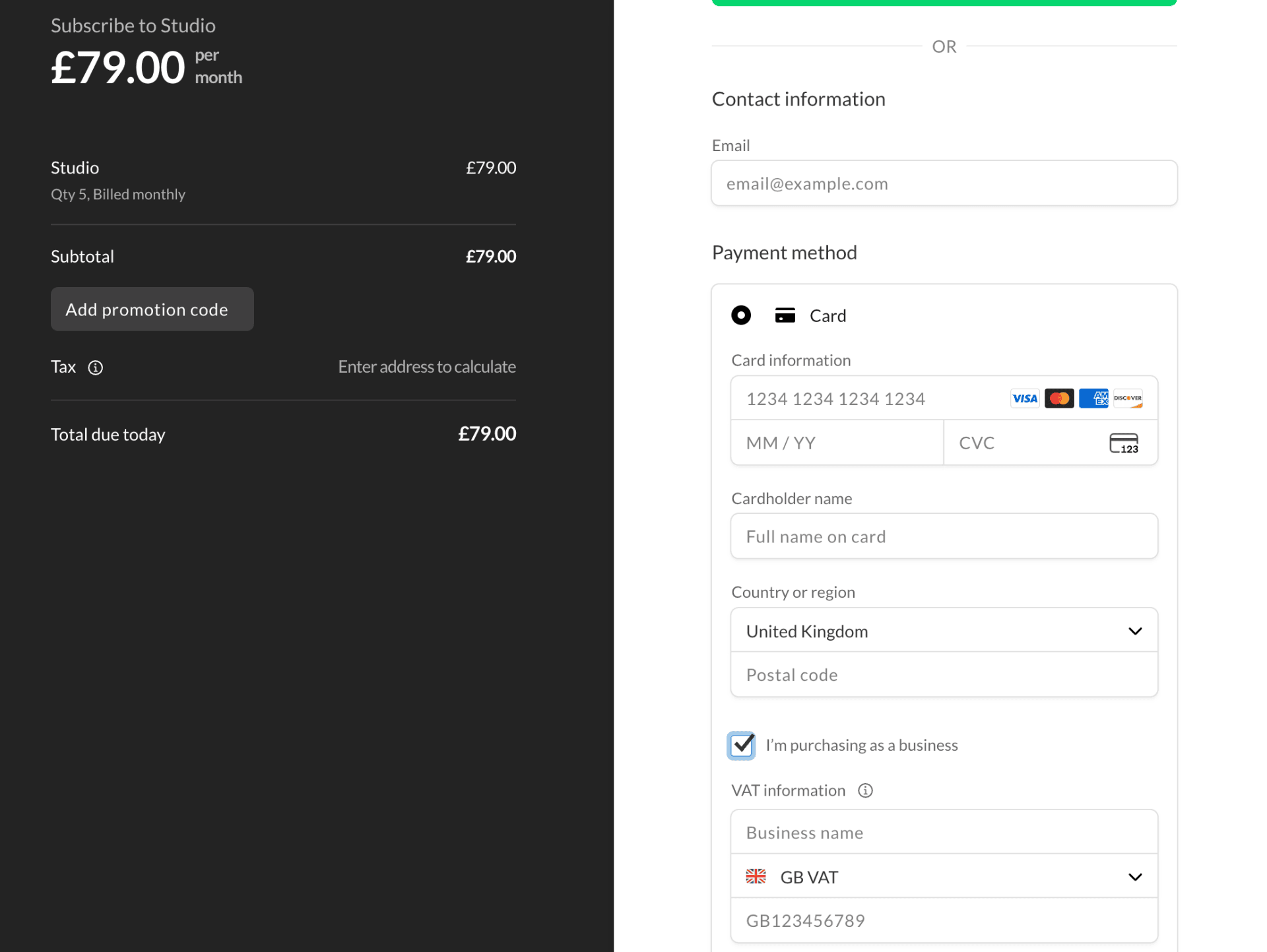
If you are making a business purchase, tick the "I'm purchasing as a business" checkbox at the bottom of the payment form. This reveals fields for your business name and VAT number so you receive a proper VAT invoice. Your upgrade takes effect immediately.
How do I invite other team members?
You can invite colleagues directly from the Team Members panel.
Open the user settings dropdown
Click the Gendo logo in the top-left corner of the interface to open the dropdown menu, then select Manage Team.

Review seats and members
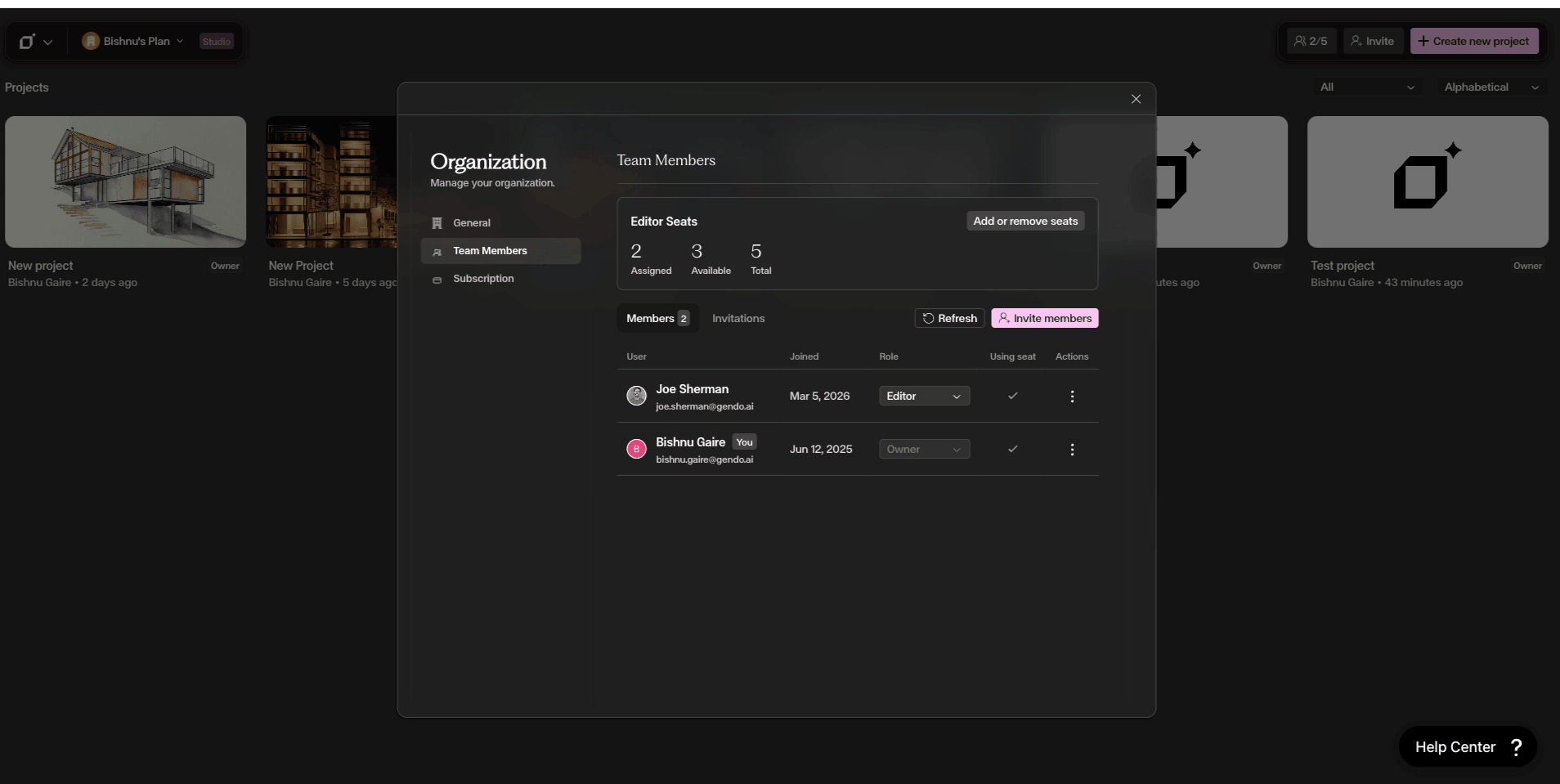
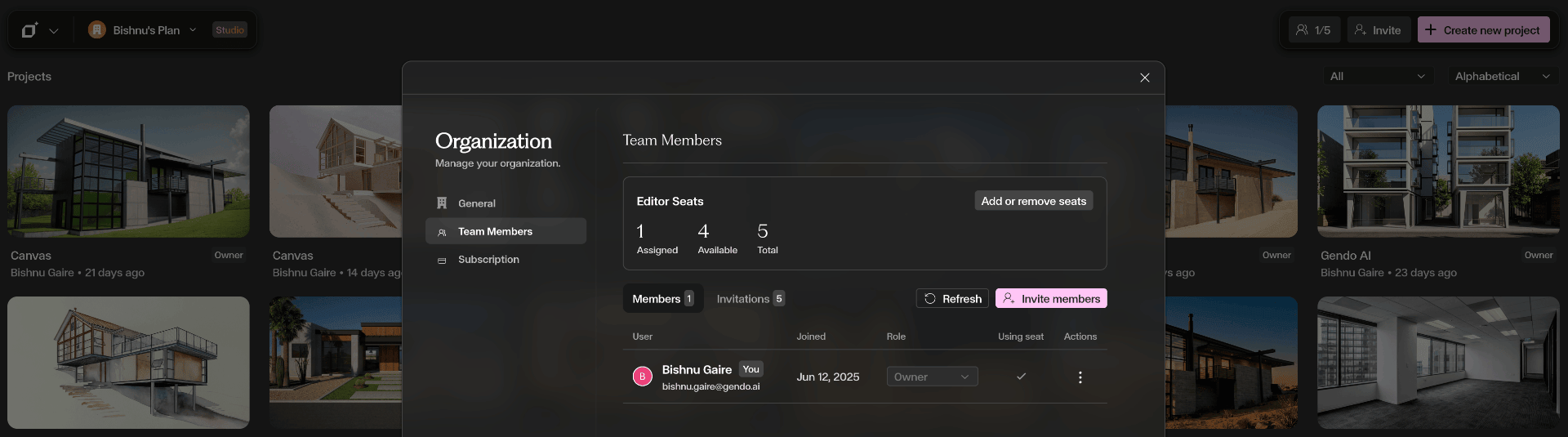
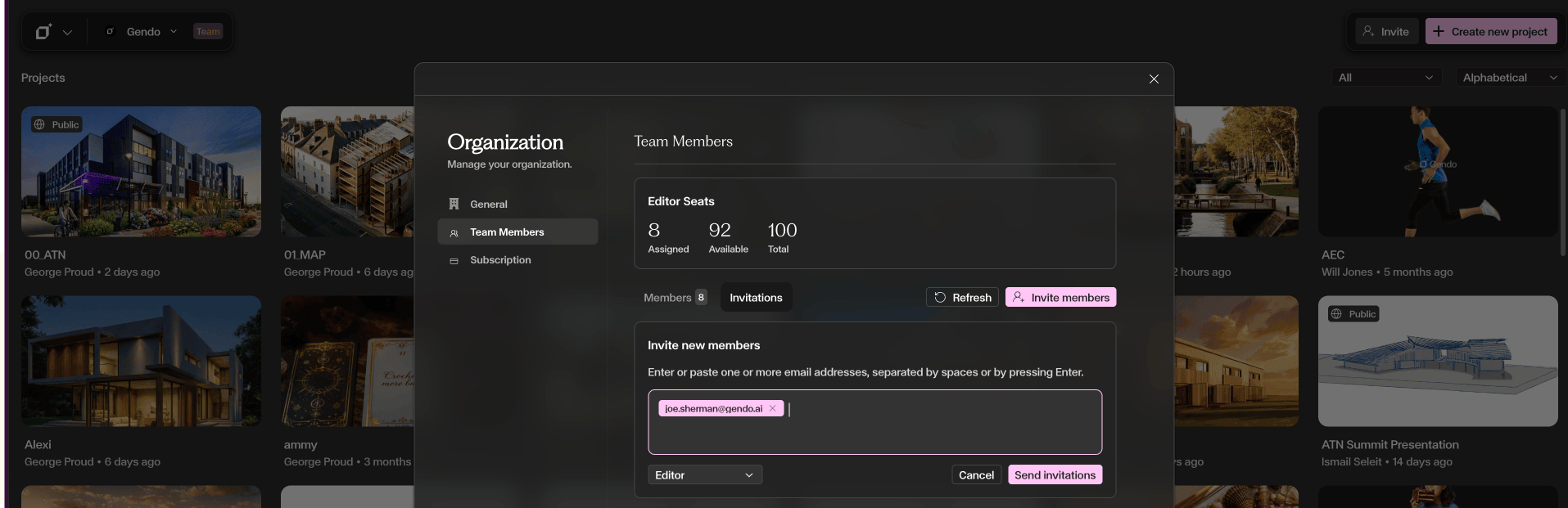
The Team Members panel shows your Editor Seats — how many are assigned, available, and total. Below that you can see all current members, their join date, role (Owner, Admin, Editor, Viewer), and whether they are using a seat.
Send an invitation
Click Invite members, enter one or more email addresses (separated by spaces or pressing Enter), choose a role from the dropdown (Editor, Viewer, or Admin), and click Send invitations.
Invitee receives an email
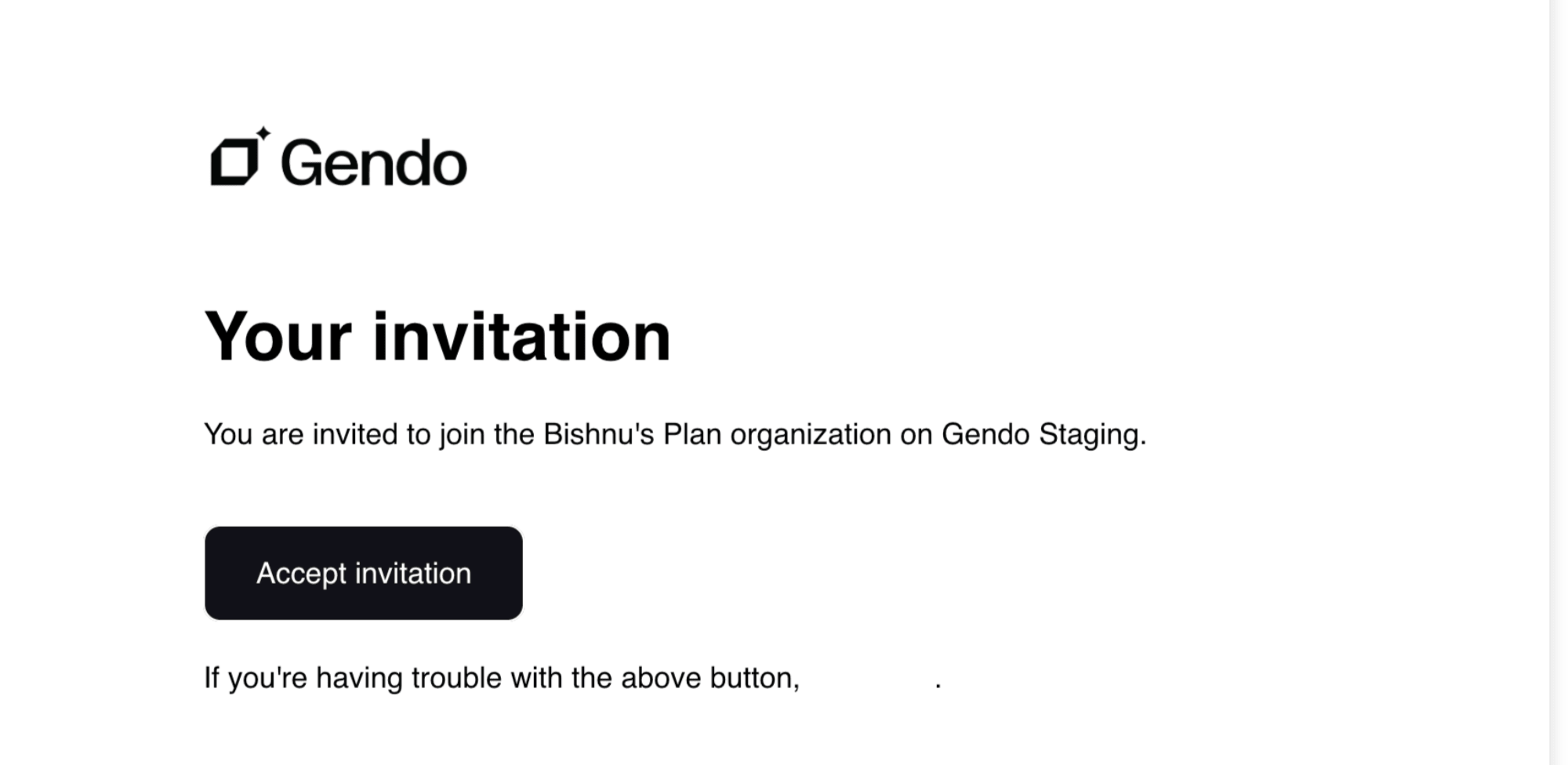
The invitee receives an email with an Accept invitation link to join your organisation. Once they accept, they appear in the Members list and can access shared projects.
Seat assignment & reassignment
When a user is assigned an Editor or Admin seat, that seat is locked for 2 weeks and cannot be downgraded or reassigned during that period.
Users with Viewer access can still be upgraded to Editor or Admin at any time.
How do I add more seats?
You can add or remove editor seats directly from Team Members.
Open Team Management
Click the Gendo logo in the top-left corner of the Canvas to open the dropdown menu, then select Manage Team.
View your current seats
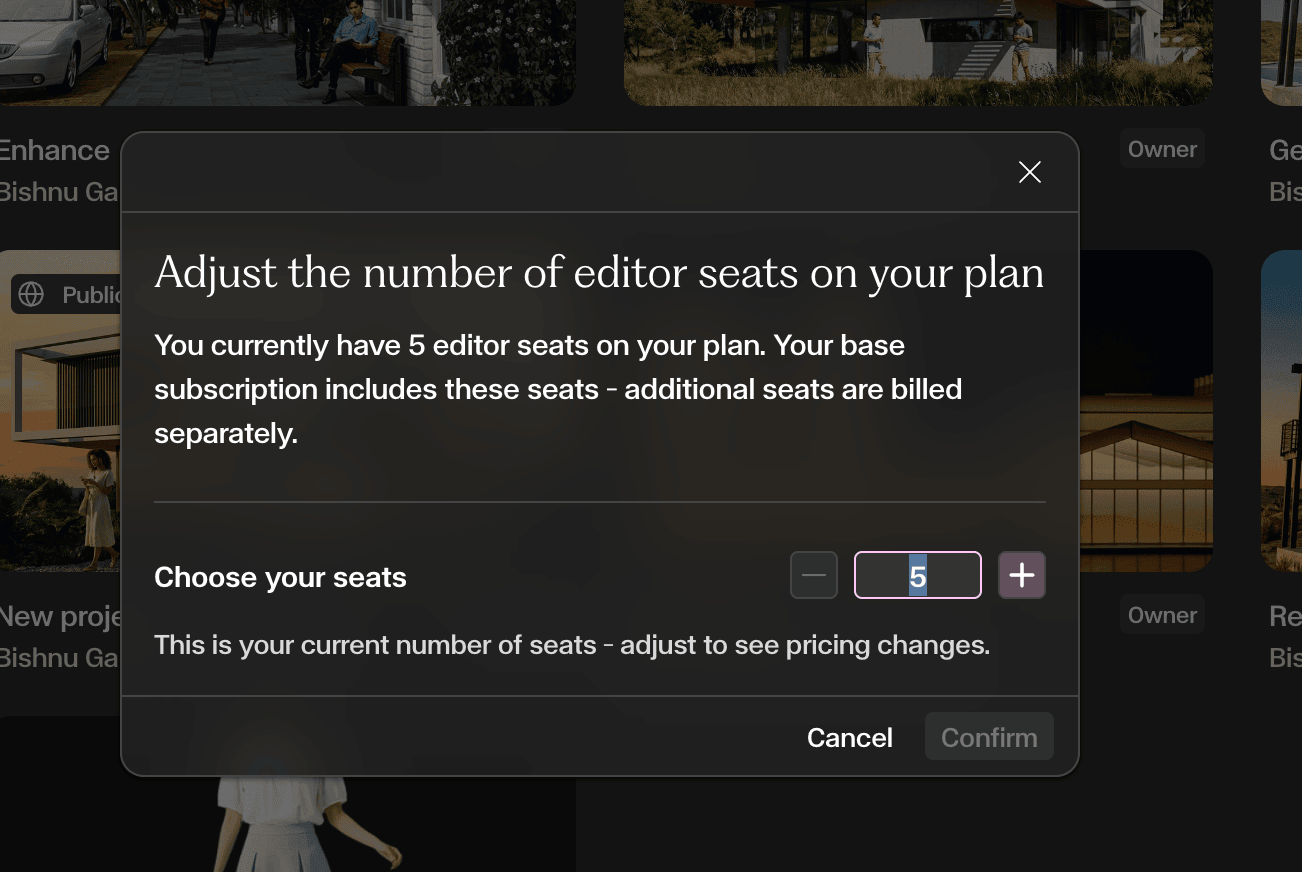
The Team Members panel shows your Editor Seats — how many are assigned, available, and total. Click Add or remove seats to adjust.

Adjust and confirm
Use the + and − buttons to set your desired seat count, then click Confirm. Additional seats are billed pro-rata for the current billing period.
How do I view invoices or update my payment method?
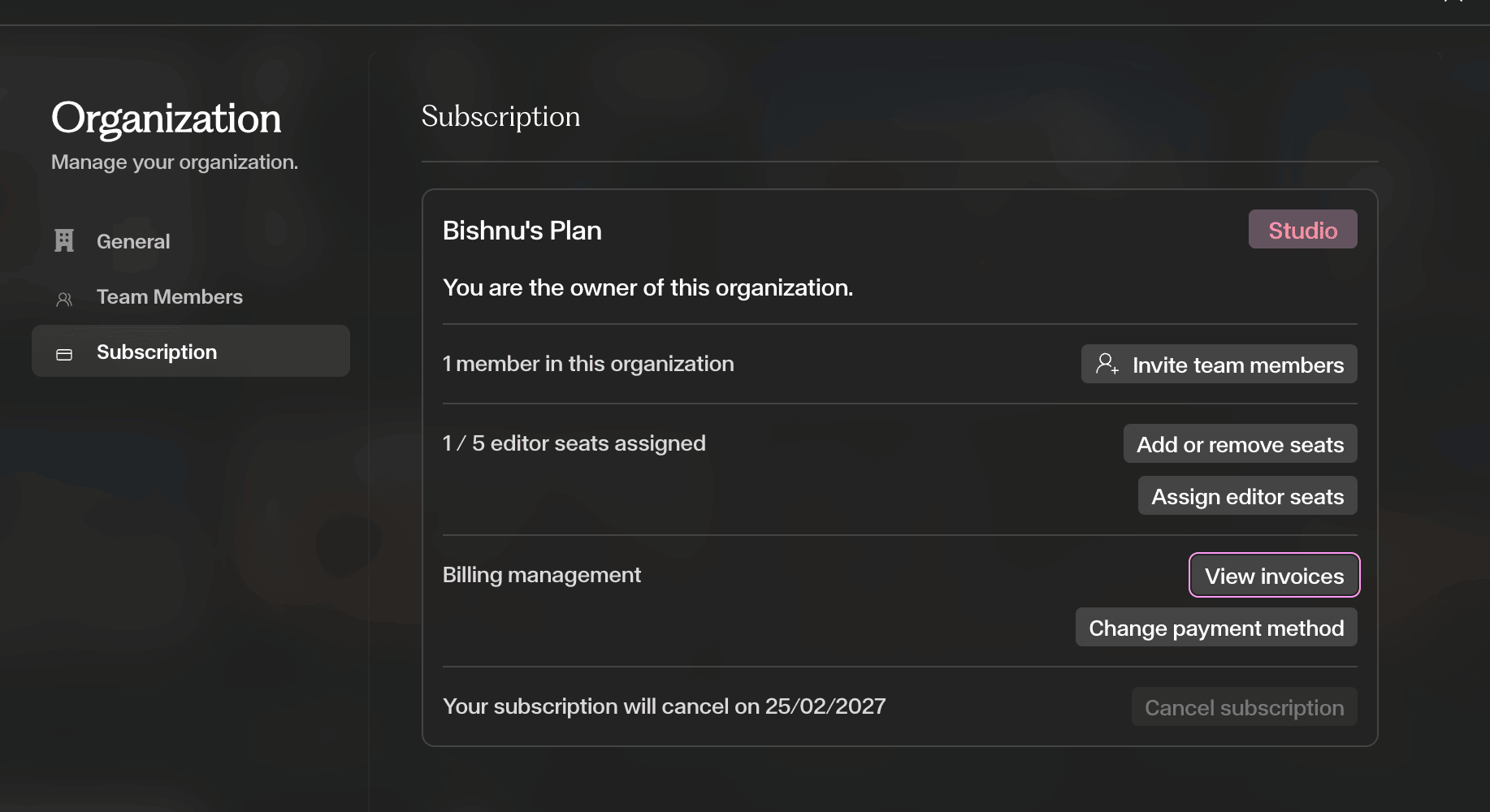
Both options are accessible from the same place. Open the Subscription panel from Organisation settings and look under Billing management.
Open Subscription → Billing management
Navigate to Organisation → Subscription. Under the Billing management section you will find two options:
- View invoices — opens your full invoice history where you can view or download any past invoice.
- Change payment method — lets you update your card or billing details.
How do I cancel my subscription?
- 1Open the Organisation modal by going to the top-left of the Canvas, next to the Gendo logo, and clicking Subscription Management. At the end of the modal you will see Cancel subscription.
- 2Click Cancel subscription
- 3Confirm
Your Studio plan remains active until the end of the current billing cycle.
What happens after I cancel?
Your workspace downgrades to the Free plan. The following limits apply:
- 1 active project (others become frozen)
- 2 editor seats (others become view-only)
- Public links disabled
- Watermarked exports
- No commercial license on new work
Your projects are not deleted — resubscribe to unlock full access.
Tips and Limitations
Only the Organization Owner can manage subscriptions — if you don't see the option, contact your organization owner.
Studio plans include 5 editor seats by default — check your seat count before inviting new members.
Cancelling does not delete your work — your projects and images remain stored in Gendo.
After downgrading, additional projects become frozen but are not deleted — resubscribe to unlock them.